Shopcada
  • Features
    • Everything you need to sell
    • Automation
    • Sell everywhere
    • Scalable
    • Continuous Support
  • Sell
    • Web
    • POS
    • ShopcadaPay
    • Marketplaces
  • Work
  • Support
    • Guides
    • Blog
    • Support
  • Login
  • Request Trial
Shopcada
  • Features
    • Everything you need to sell
    • Automation
    • Sell everywhere
    • Scalable
    • Continuous Support
  • Sell
    • Web
    • POS
    • ShopcadaPay
    • Marketplaces
  • Work
  • Support
    • Guides
    • Blog
    • Support
  • Features
    • Everything you need to sell
    • Automation
    • Sell everywhere
    • Scalable
    • Continuous Support
  • Sell
    • Web
    • POS
    • ShopcadaPay
    • Marketplaces
  • Work
  • Support
    • Guides
    • Blog
    • Support
  • Request Trial
Help Center/ Your Site/ Editor/ Text Editor: How To Insert Hyperlink
On this page

Text Editor: How To Insert Hyperlink

Updated 12 Feb 2020 1 min read
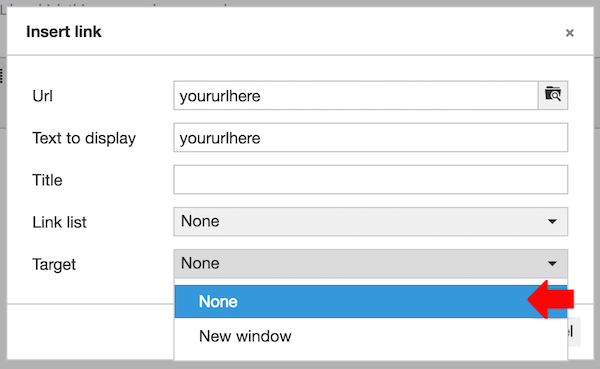
  • To insert hyper link, select the anchor text, click [INSERT/EDIT LINK]

  • At the pop up window, key in Link URL
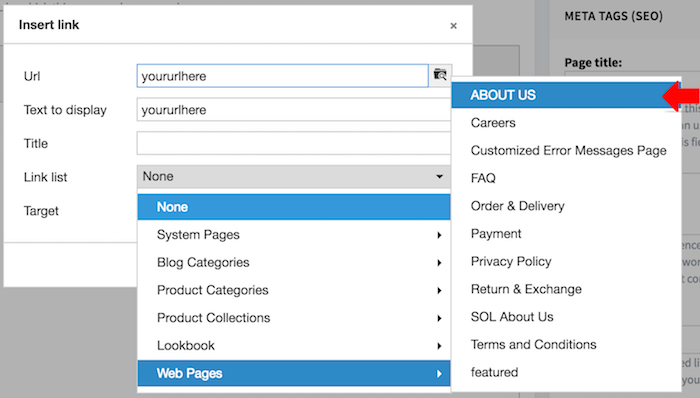
  • You may also select from the LINK LIST

     
  • To open the link in the same window, select Target [None].
  • To open the link in a new window, select Target [New Window].
  • Click [OK].

Related articles

Text Editor: How To Toggle Full Screen Mode Text Editor: How To Insert Image Text Editor: How To Embedded Media
On this page
Shopcada
© Copyright Shopcada. 2026. All Rights Reserved.

Sell Everywhere

  • Web
  • POS
  • Marketplace

Products

  • Features
  • Showcases
  • API

Company

  • Contact Us
  • Terms of Service
  • Privacy Policy
  • Personal Data Protection Policy

Customer Care

  • Guides
  • Blog
Shopcada
© Copyright Shopcada. 2026. All Rights Reserved.