How To Configure Weight Based Shipping


Add New   

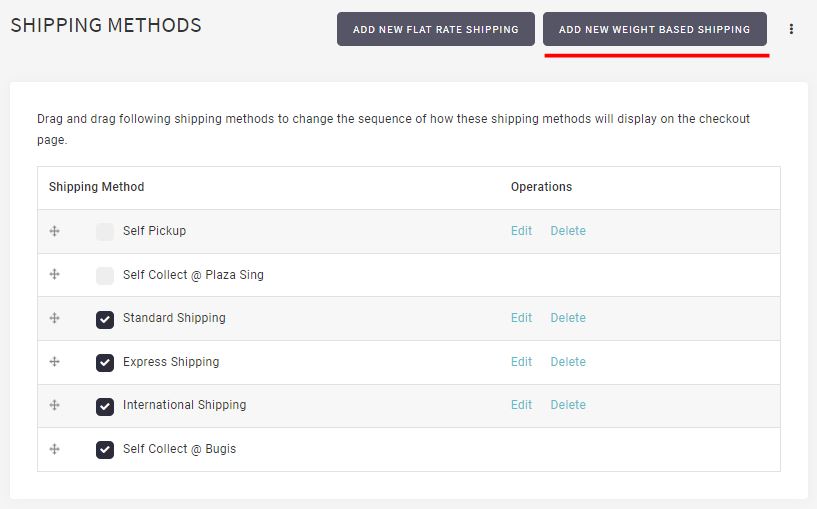
  • From MANAGE YOUR STORE (DASHBOARD), go to SETTING then go to SHIPPING METHODS
  • Click ADD NEW WEIGHT BASED SHIPPING


Name the shipping method
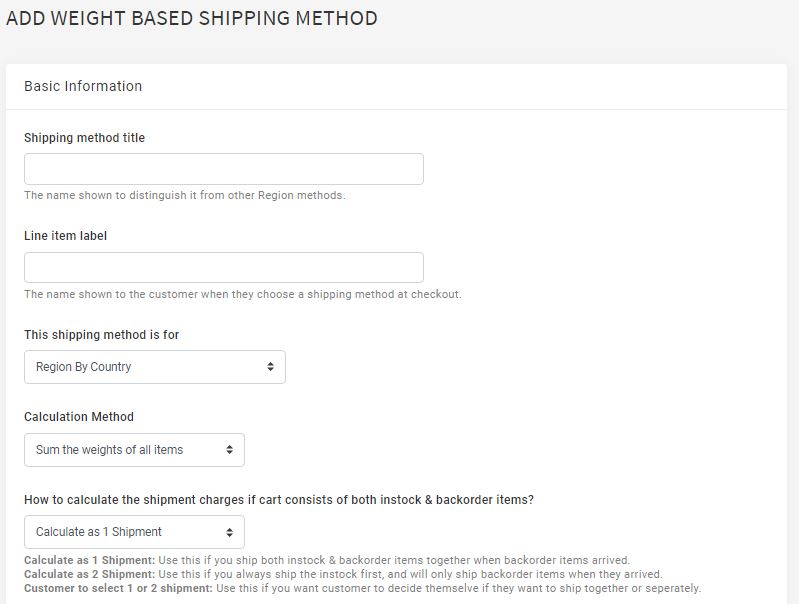
  • Enter the required SHIPPING METHOD TITLE  and LINE ITEM LABEL. Make use of the different Shipping Method Title to assist you to identify shipping method, even you wish to label the same for customers. 
  • Decide is the weight calculation based on total cart weight or use the heaviest item weight

Singpost will use the total parcel weight for shipping charges calculation
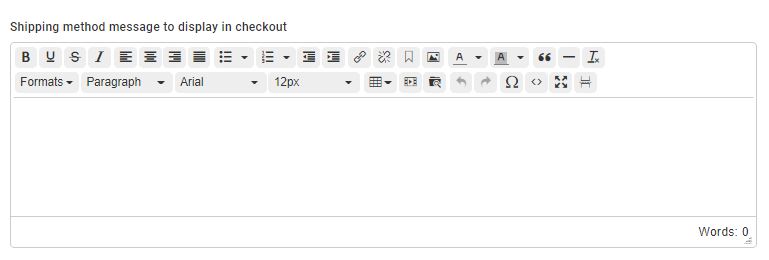
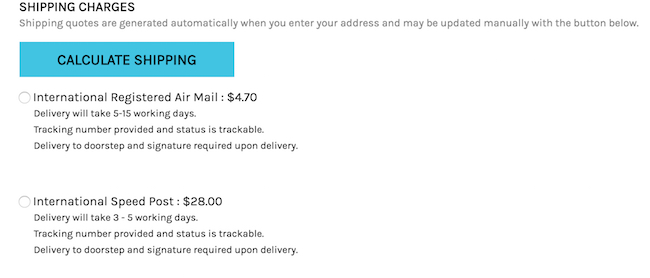
  • Enter the simple message to guide your customer to select most suitable option. Sample below: 
  • Click SUBMIT to proceed.


Sync the rate (SingPost)
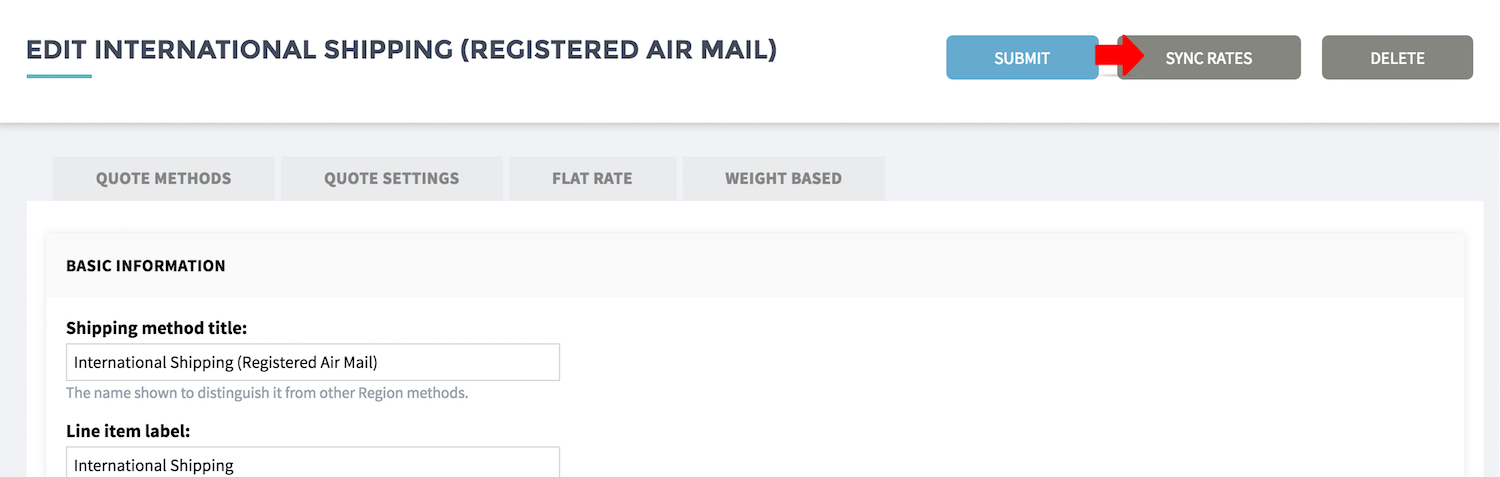
  • If you are using Singpost Rate, you can sync the rate from SHOPCADA database.
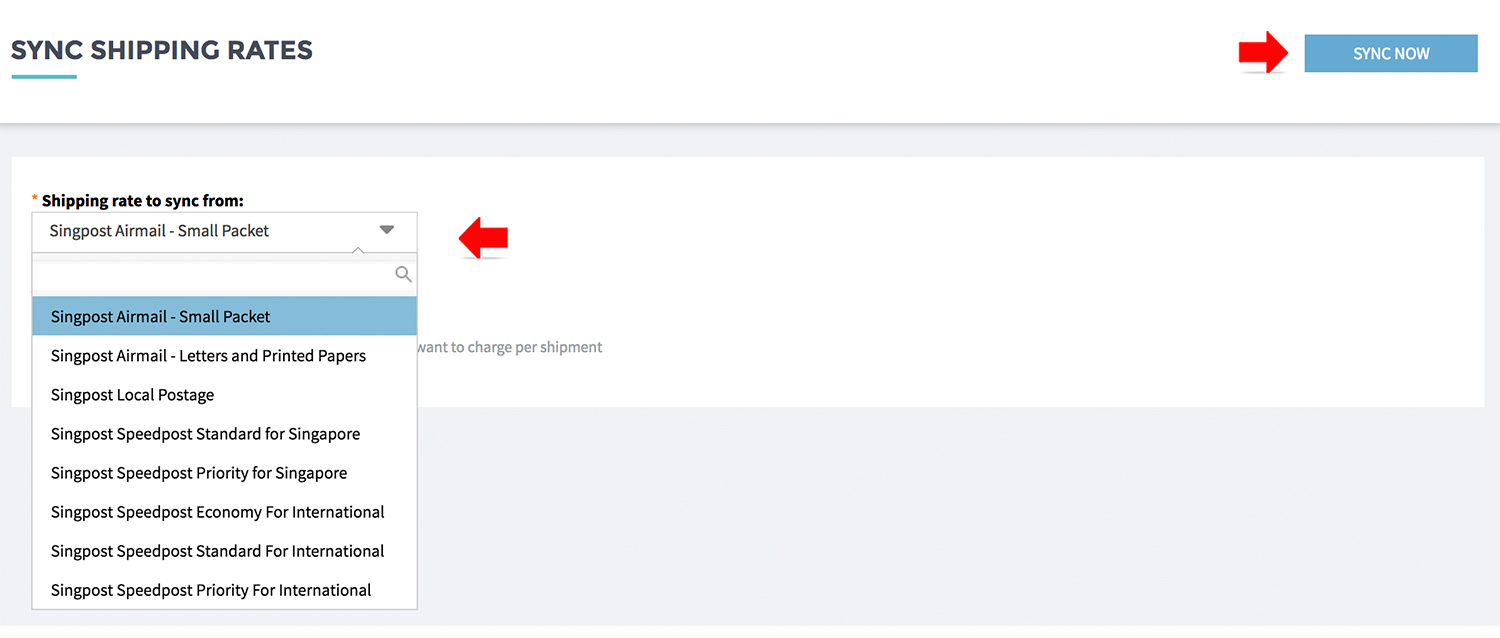
  • Click the SYNC RATE

  • Select a shipping mode from the drop down
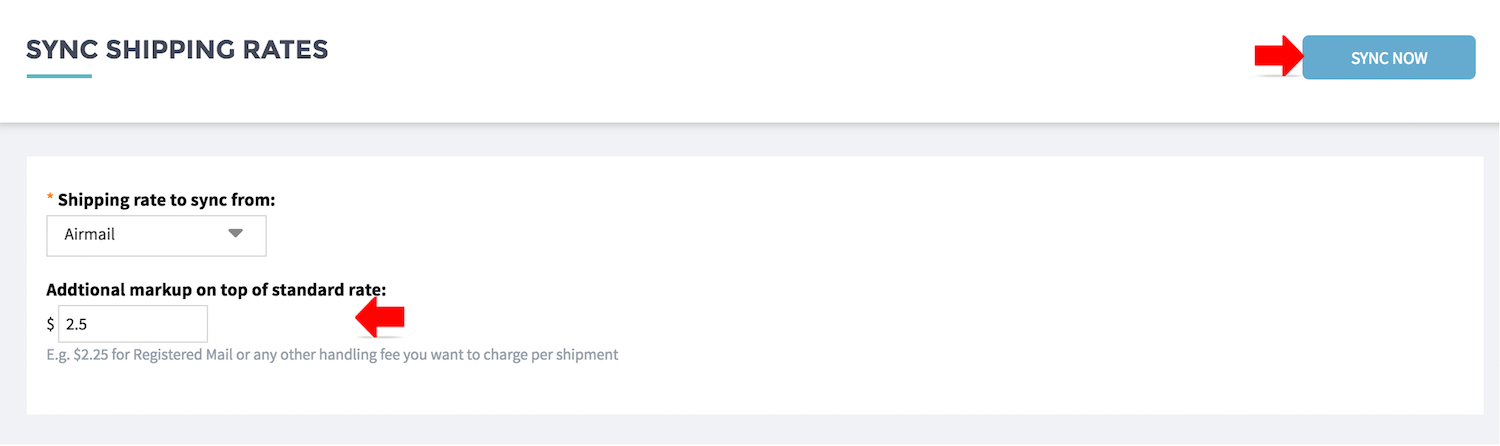
  • Enter markup, if there is any. 

AIRMAIL rate is refer to regular airmail. Markup $2.50 for register airmail.

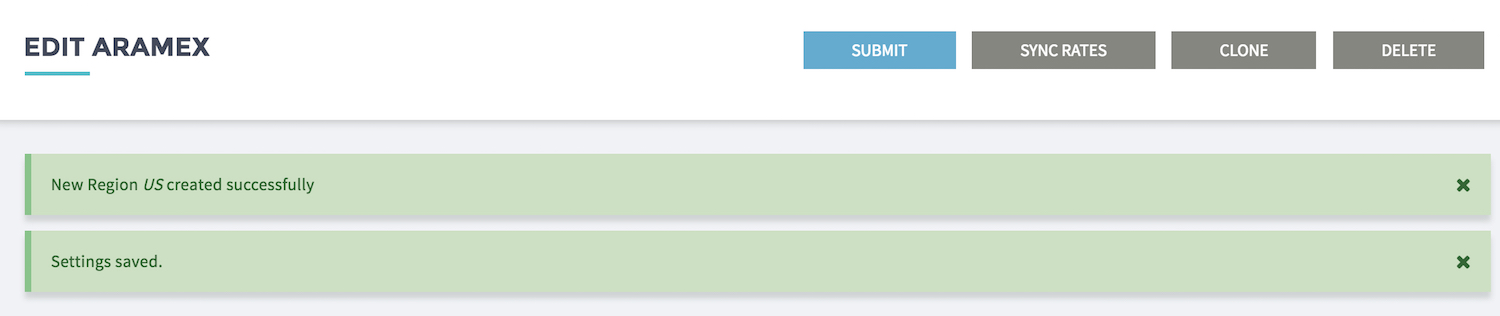
  • Click SUBMIT to save the rate and regions
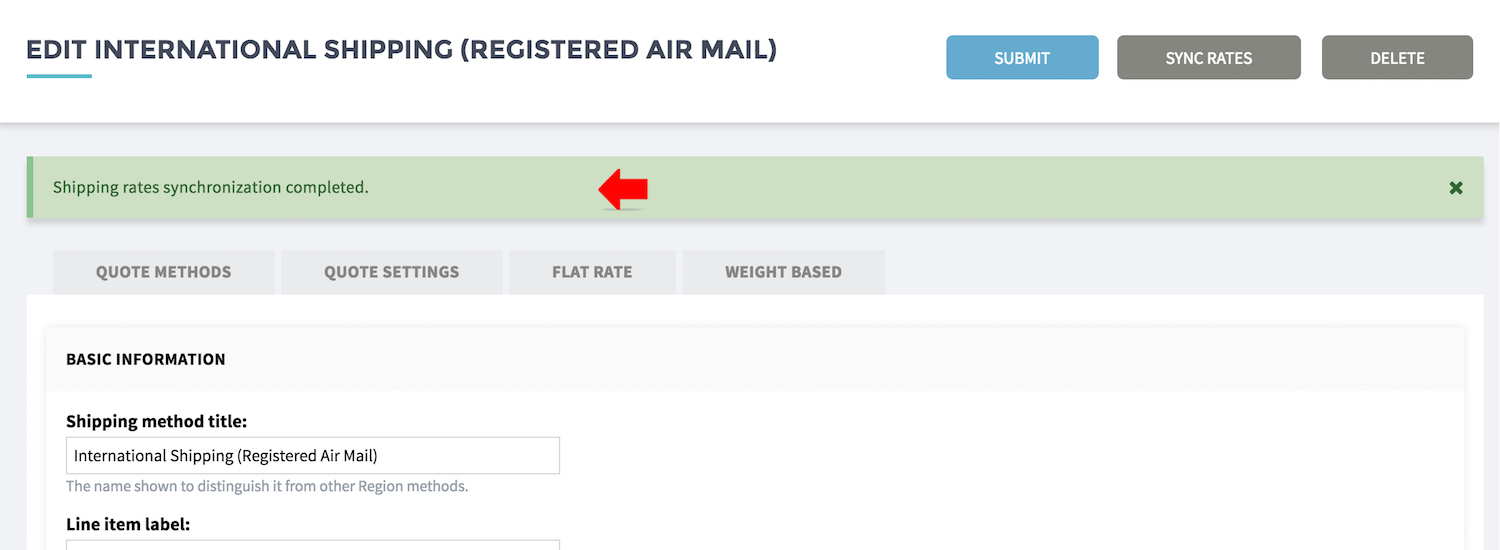

  • The region / country listing / rates will be sync based on the shipping mode you select.
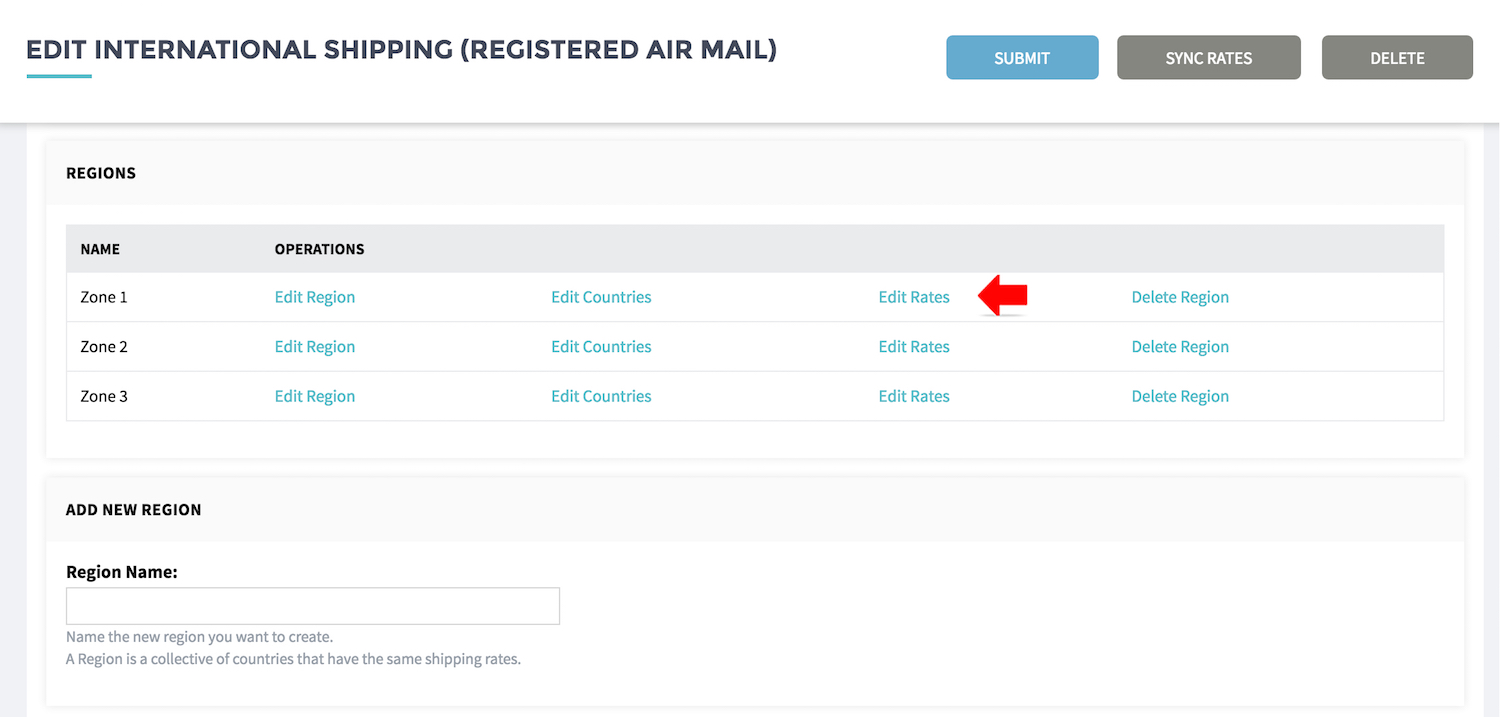
  • Click EDIT RATE to edit the rates or your can re-sync.


Manual enter the rate (Other ship-modes)
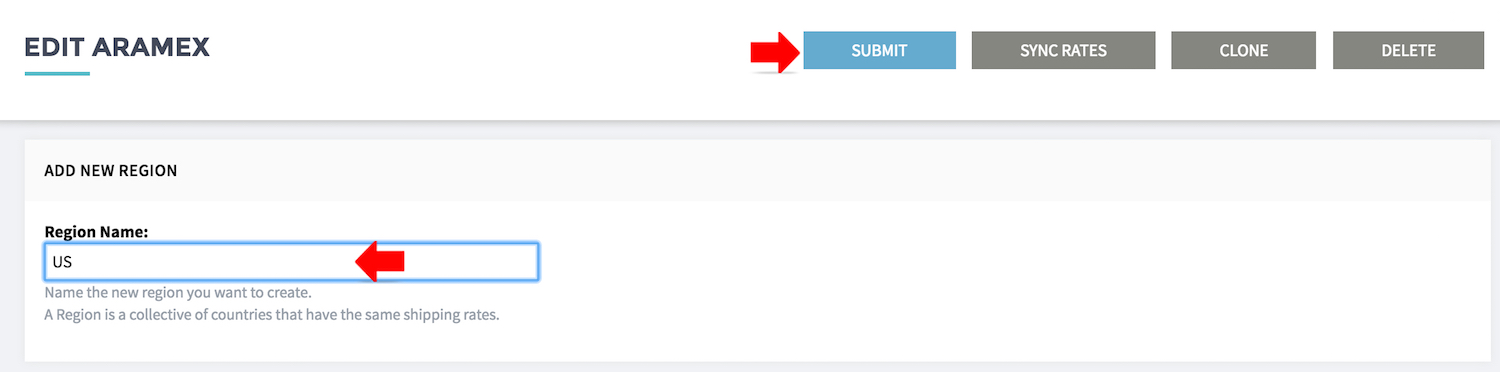
  • For other ship modes with different rate structure by weight
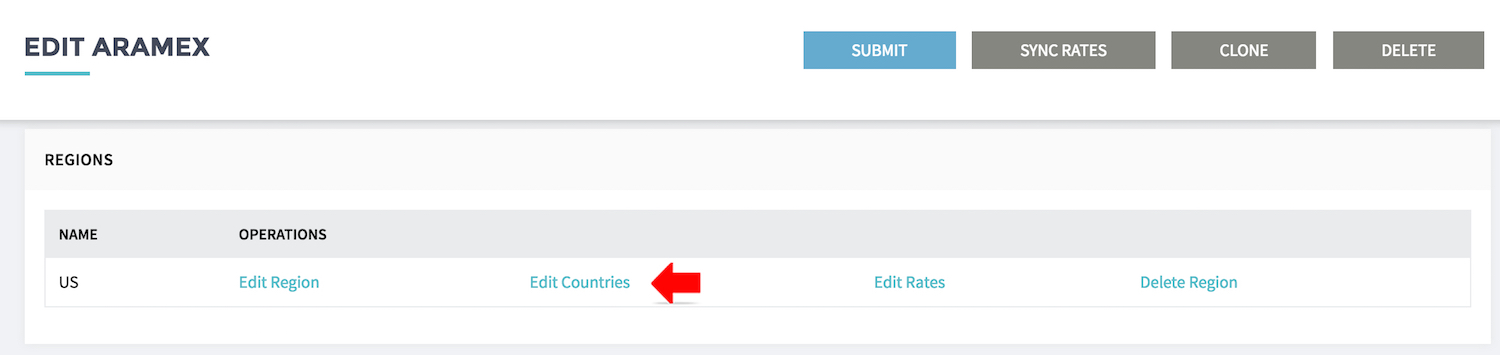
  • Go to ADD NEW REGION, enter the name to Region Name
  • Click SUBMIT to save

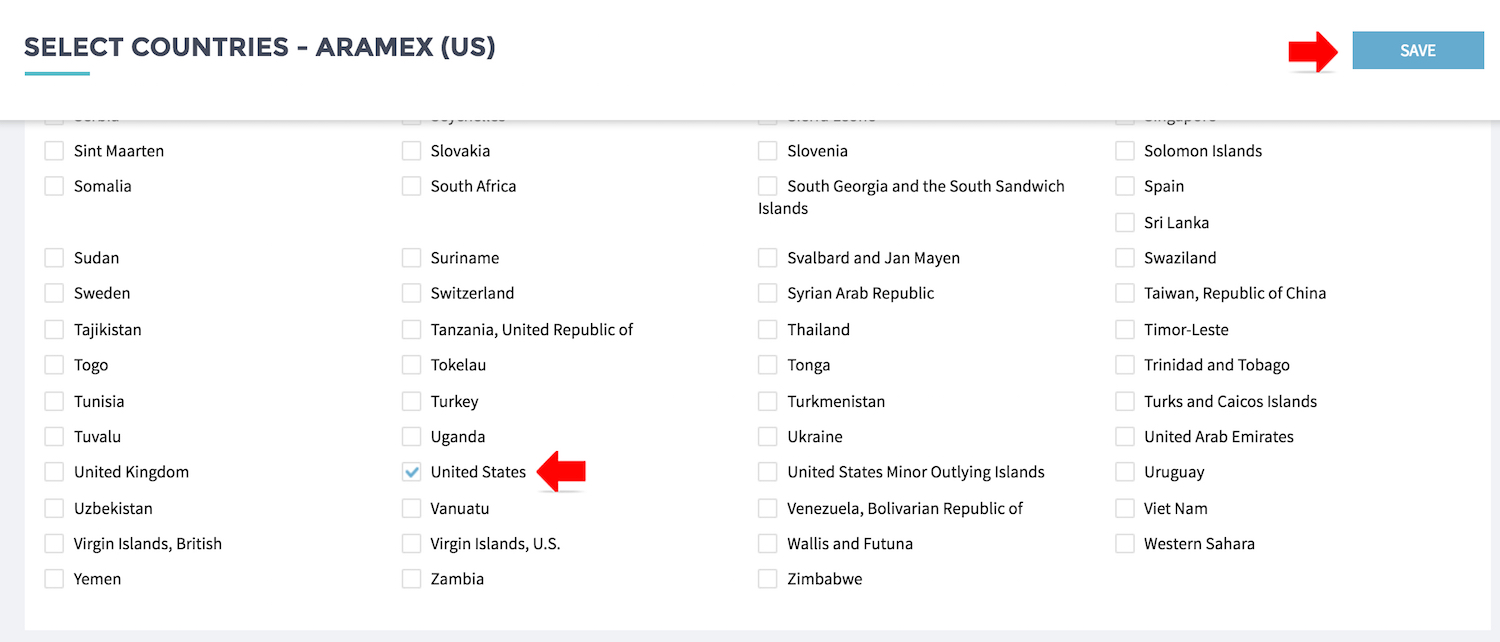
  • Click EDIT COUNTRIES, select the country fall under this region.
  • Click SAVE 

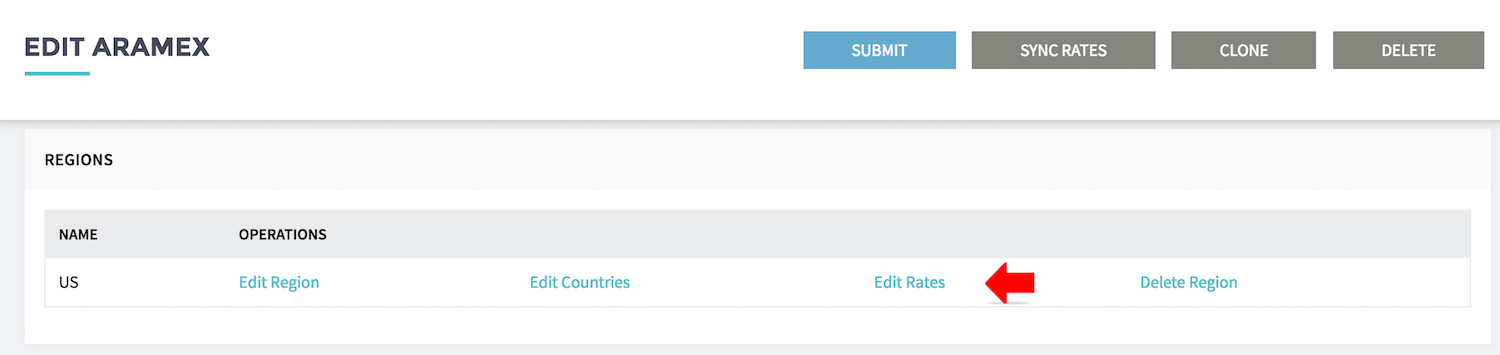
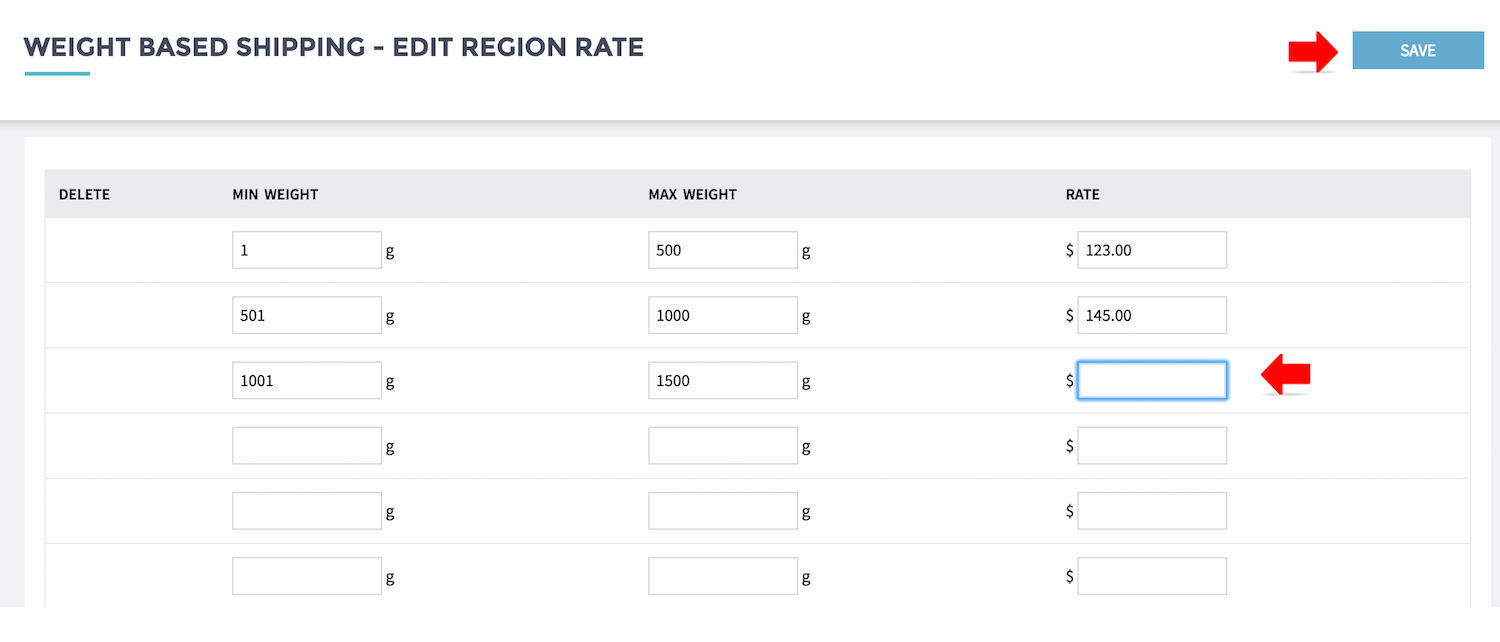
  • Click EDIT RATES, select the country fall under this region.
  • Click SAVE 
  • Repeat the process for all regions required. 


How to Update Shipping Rates

Shopcada allows merchants to update shipping rates in two ways:

  • Batch Update via CSV Upload (recommended for bulk changes)
  • Manual Update (Edit One by One)

Batch Update via CSV (Bulk Update)

This method is recommended when you need to update multiple shipping rates at once.

  • Navigate to Dashboard > Settings > Shipping > Shipping Methods.

  • From here, you can view and manage all available shipping methods.

  • Click Edit on the shipping method. 

  • Click Download CSV from the bottom action bar. 

    The action bar is fixed to the bottom of the browser and will appear automatically when you scroll down the page.

  • Open the CSV file and update the relevant fields:

    • region_id
    • region_name
    • min_weight
    • max_weight
    • rate

      *Ensure:
      Weight ranges do not overlap
      Values are consistent and correctly formatted
      Do not modify column headers
  • Return to the same Edit Rates page, click Upload CSV

  • Select your updated file, click Submit to apply changes.

  • Review the updated rate table. 


Manual Update (Edit Individually)

  • Navigate to Dashboard > Settings > Shipping > Shipping Methods.

  • From here, you can view and manage all available shipping methods

  • Click Edit on the shipping method

  • Scroll to Regions, click Edit Rate
  • Update Rate Values, you may also edit From Weight, To Weight and Rate with each row represents a weight tier for shipping calculation.

  • Click Submit to update the rates