


Overview
Void an order to cancel a sale made by mistake, such as a duplicate sale or the wrong payment method.
Void an Order
- Tap Admin Menu > Register > Order History.
- Tap the order.
- Tap VOID ORDER.
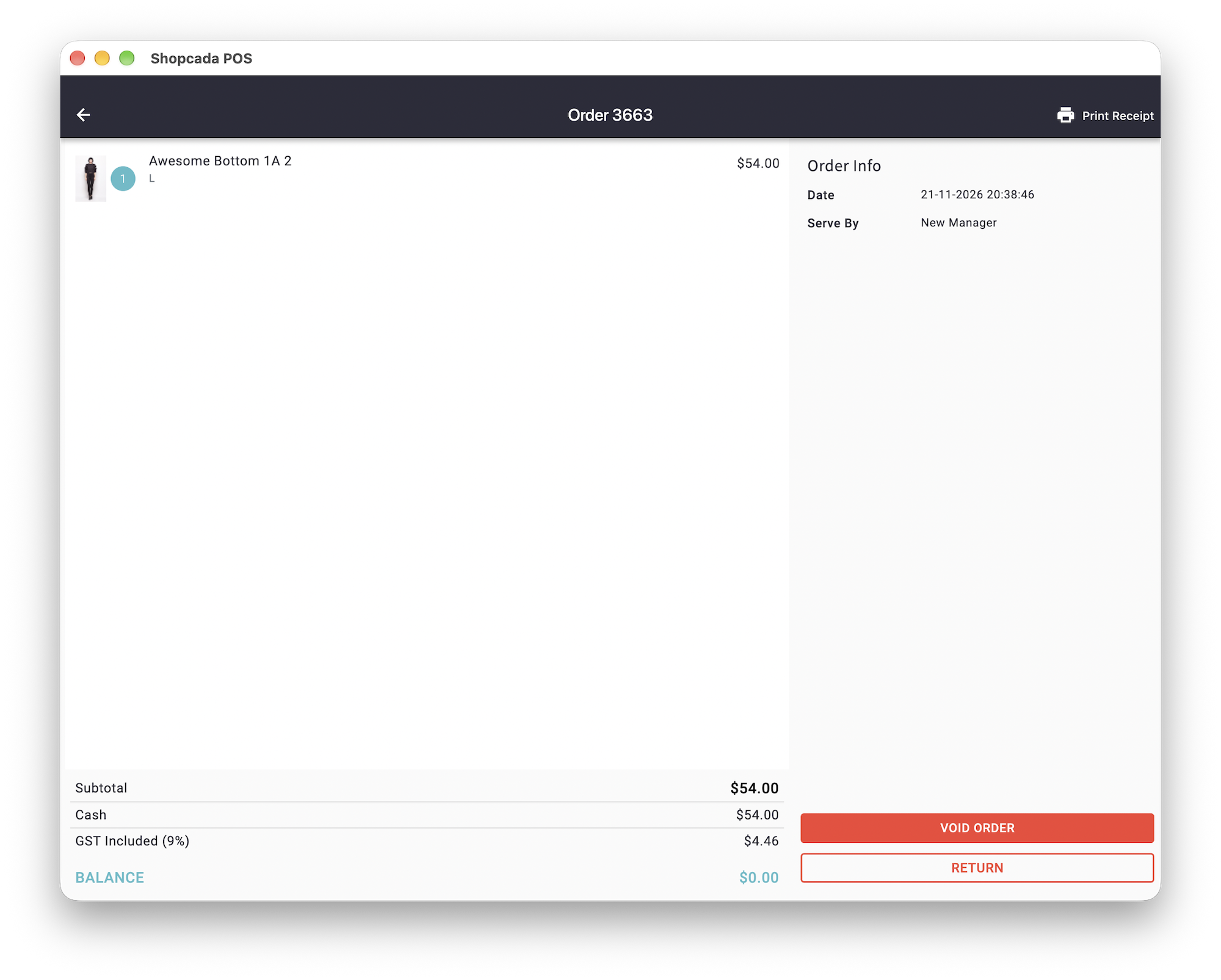
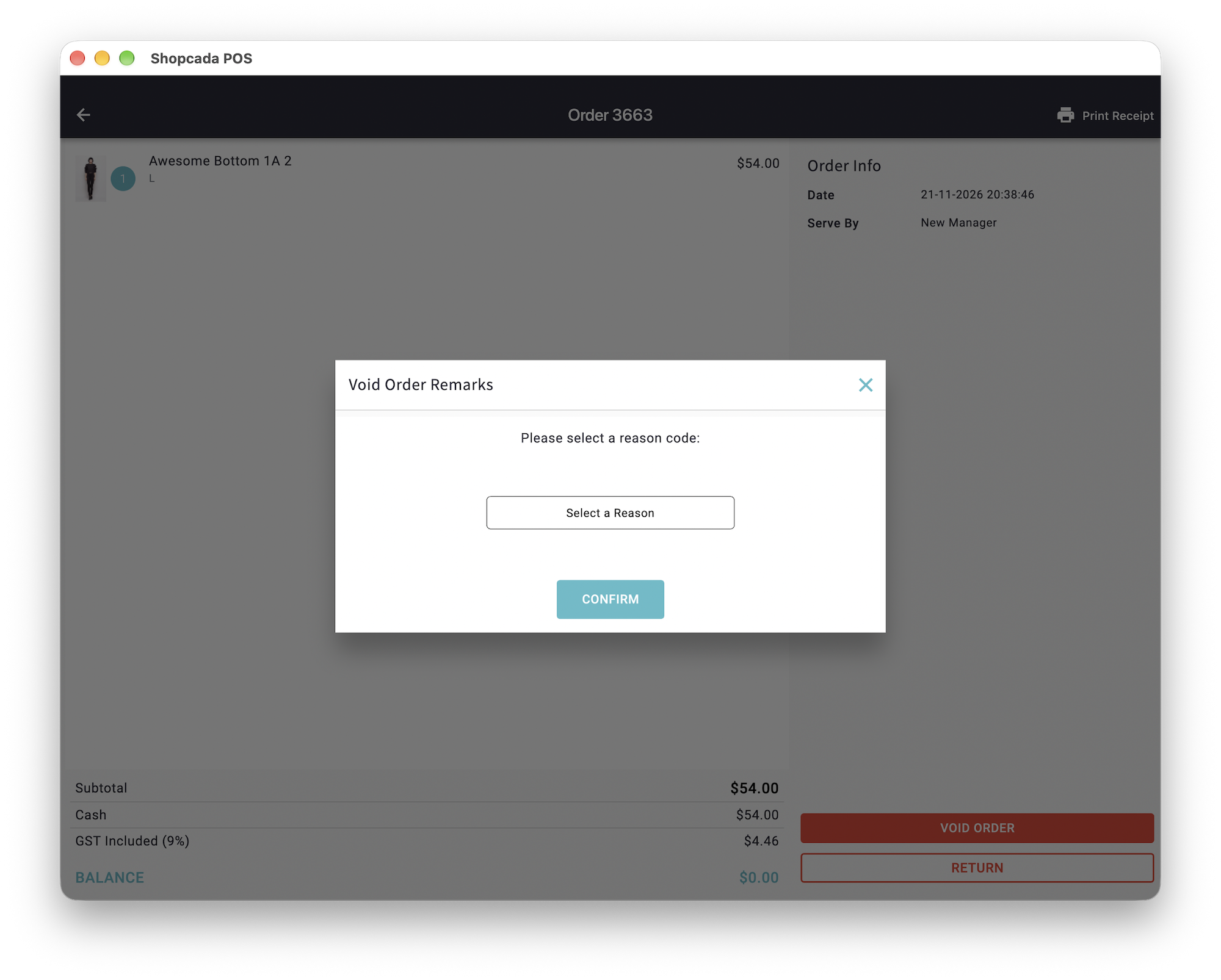
- Tap Select a Reason.
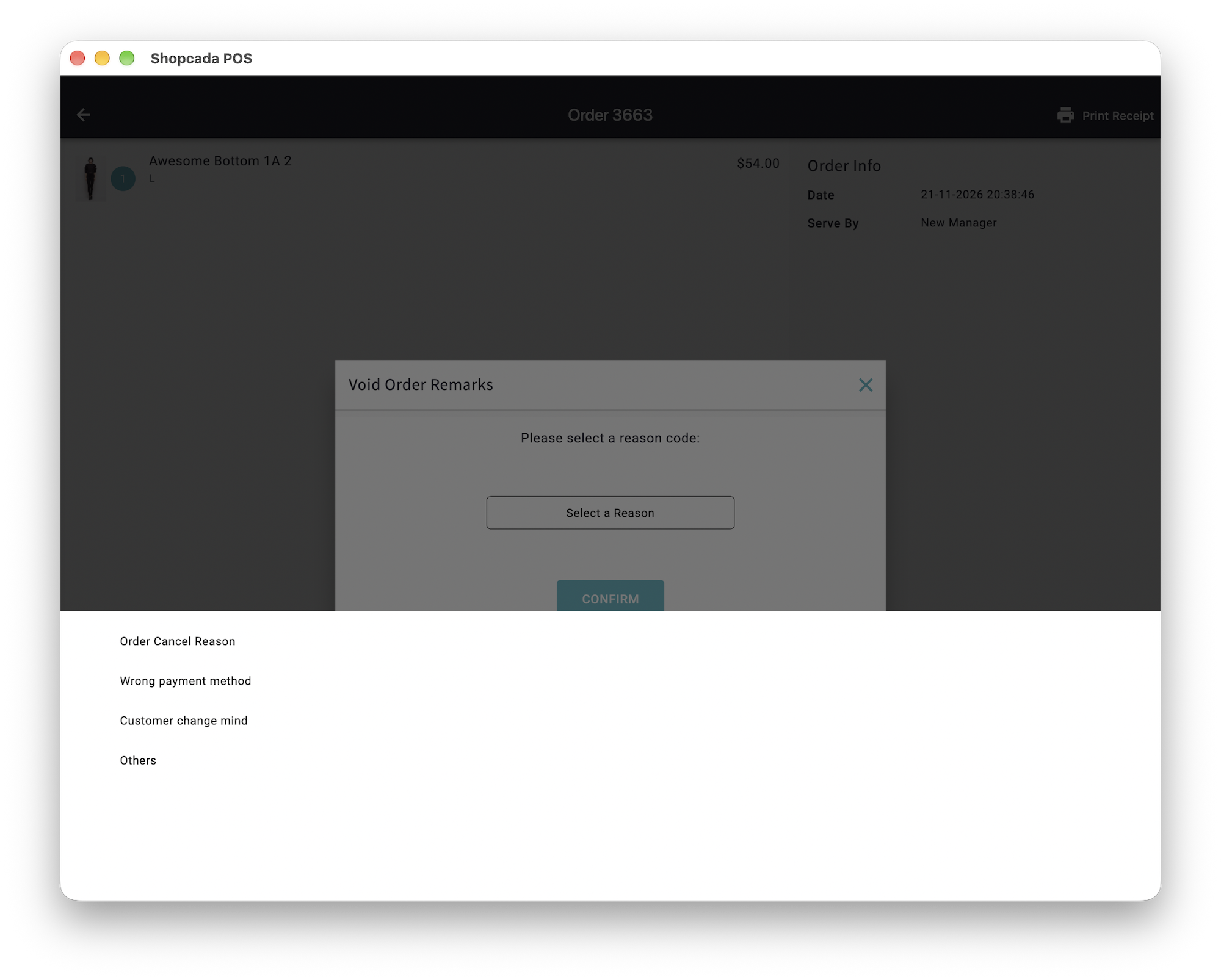
- Pick the reason.
- Tap CONFIRM.
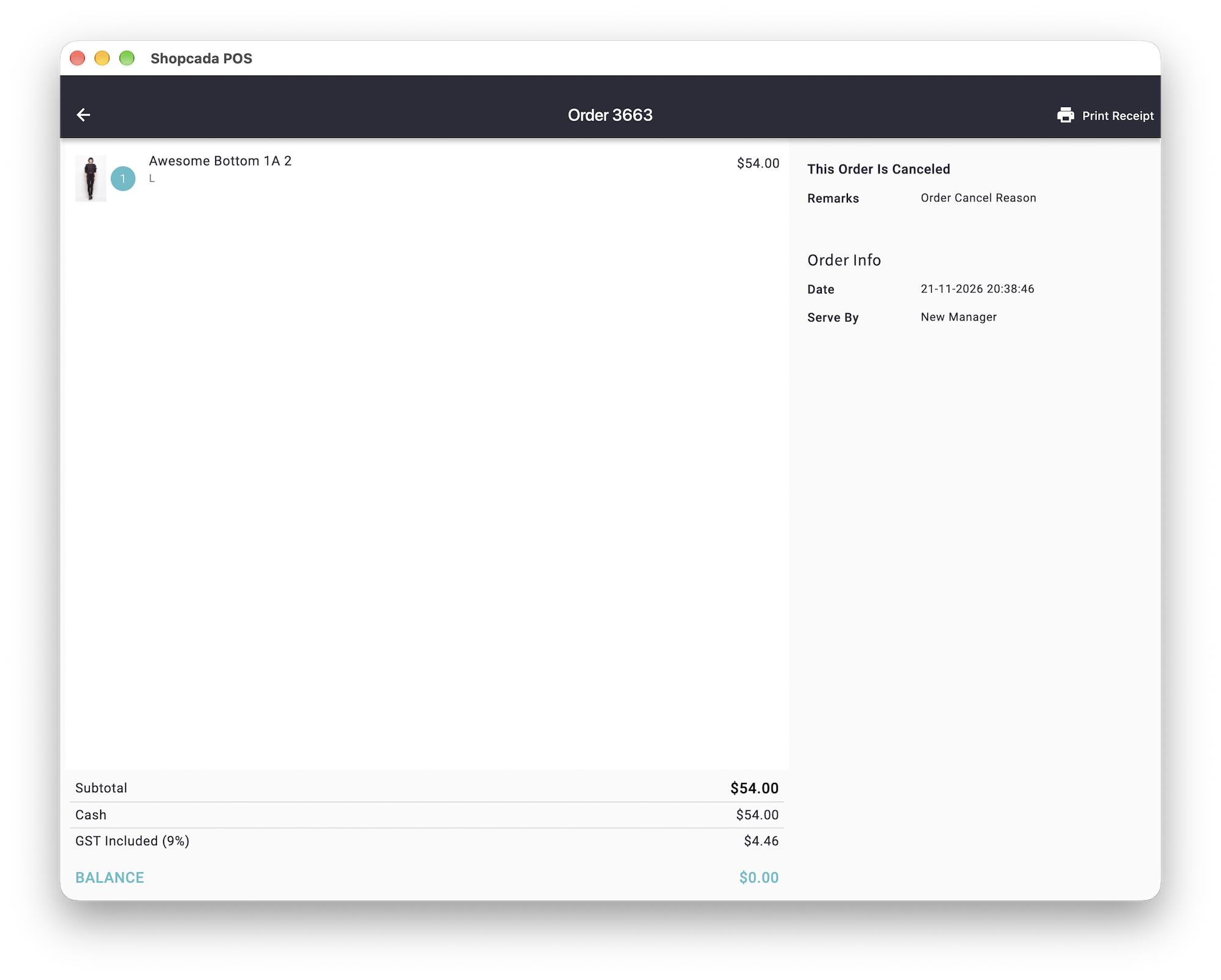
The order now shows This Order Is Canceled, with the reason under Remarks.
When You Can’t Void an Order
- You can void an order only on the day of the sale. After that, return the items instead. See Shopcada POS: How to process order exchange and Shopcada POS: How to process order refund by Store Credit.
- An order with a refund can’t be voided. This includes a return or exchange of a single item.
- A customer deposit can’t be voided once any of it is spent. See Shopcada POS: Sell a Customer Deposit.
- Your store may let only managers void orders, or open Order History. If VOID ORDER doesn’t show on the order, or you can’t open Order History, ask a manager to log in with their own PIN Code and void it.
What a Void Does
You can’t undo a void. To sell the items again, make a new sale.
- In the dashboard, the order’s status changes to Canceled.
- Cancel Remarks on the order shows the reason.
- The order log records which staff member voided it, on which iPad.
- The items go back into stock.
- Points, store credit, gift certificate value and cashback the customer spent go back to their account.
- The customer loses the points and cashback they earned on the order.
- Gift certificates and customer deposits sold in the order are voided.
- ShopcadaPay card payments are refunded to the card automatically.
Other payments, such as cash, don’t go back automatically. Return them to the customer yourself.
If a ShopcadaPay refund fails, the POS shows a message. Don’t return the payment another way. HQ can retry it from the order in the dashboard, with Check Stripe and retry refund.
Set Up Void Reasons and Manager Access
- Navigate to Dashboard > POS > Settings.
- In Orders, enter one reason per line in Reasons for Cancel Order.
- If only managers may void orders, tick Only manager is allowed to Cancel Order in Store Managers.
- Click Save configuration.
- On each iPad, tap Admin Menu > Admin > Sync Settings.
| Field | Description |
|---|---|
| Reasons for Cancel Order | The reasons staff pick from when they void an order. There are three reasons to start with. Edit them to suit your store. |
