


Overview
Each product listing page shows its products in the order set by its own product sequence. When a shopper picks a Sort By option, that order replaces yours for that shopper.
Choosing a Sequence
Navigate to Dashboard > Products > Product Sequence. Every sequence is named after the page it orders.
| Sequence | Orders |
|---|---|
| All Products | Your Shop All page, which lists every published product. |
| What’s Available | Your What’s Available page, which lists only products in stock. |
| Product Category - name | That category’s page. Shopcada adds the sequence when you create the category. |
| Product Collection - name | That collection’s page. Shopcada adds the sequence when you create the collection. |
| Other classifications, such as Brand - name | That item’s page, for every other classification your store uses, such as brand or colour. |
| Product Listing - name | A composite product listing page that combines several categories or collections. |
| Products on POS | Appears only when Use a product sequence dedicated for POS is ticked in your POS settings. |
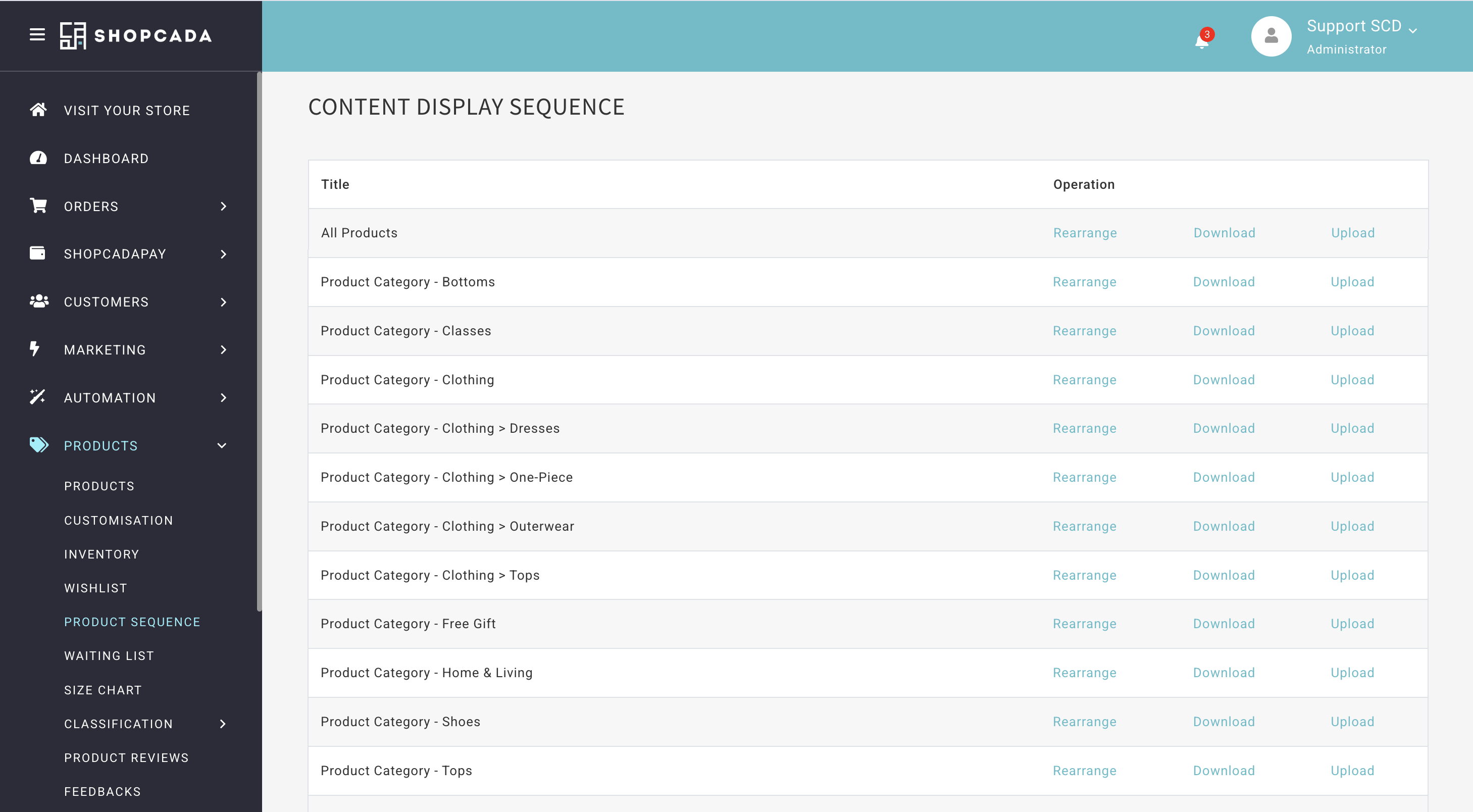
You can also open a category or collection’s sequence from its list. Navigate to Dashboard > Products > Classification > Categories or Collections, then click Rearrange Sequence under Edit. The link appears only for items with Has a web page ticked.
Dragging Products Into Order
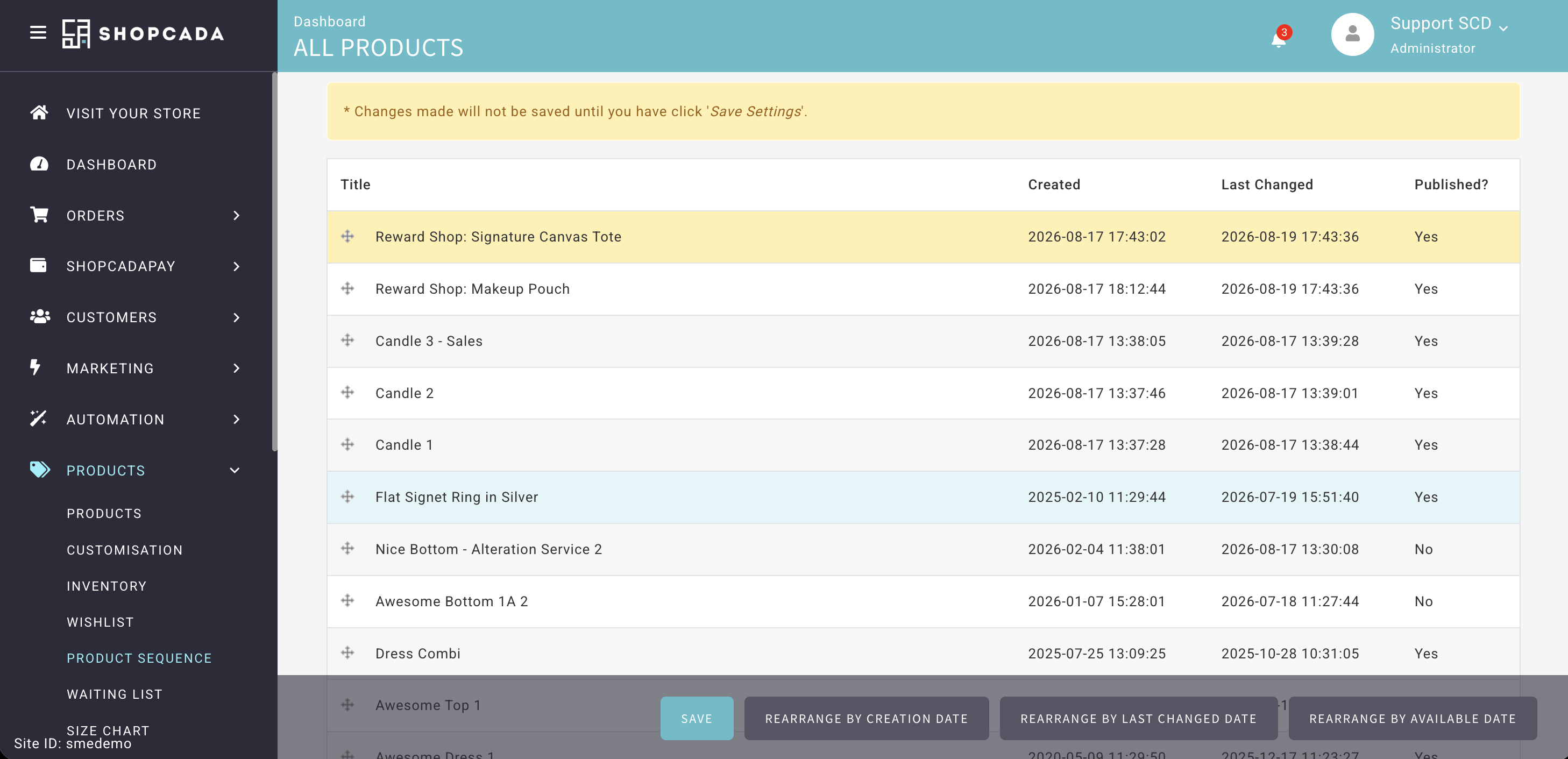
- Navigate to Dashboard > Products > Product Sequence.
- Click Rearrange beside the sequence.
- Drag each product to its place, then click Save.
This page lists only the first 100 products in the sequence. To move a product that sits below them, use a CSV file.
Resetting the Order by Date
The reset buttons on the Rearrange page reorder the whole sequence, including products beyond the first 100. Shopcada asks you to confirm first.
| Button | New order |
|---|---|
| Rearrange By Creation Date | Newest product first. |
| Rearrange By Last Changed Date | The product you saved most recently first. |
| Rearrange By Available Date | Latest release date first, so upcoming releases lead. Products with no release date go last. Only stores with Membership Pro Early Preview see this button. |
A reset replaces your order and cannot be undone. Click Download beside the sequence first if you may want the current order back, then upload that file to restore it.
Rearranging With a CSV File
Use a CSV file to reorder a long sequence, or to move products that sit below the first 100.
- Navigate to Dashboard > Products > Product Sequence, then click Download beside the sequence.
- Change the numbers in the Position column. Position 1 shows first.
- Click Upload beside the same sequence, choose your file, then click Upload.
| In the file | What Shopcada does |
|---|---|
| Header row | Reads each column by its header. Keep the header exactly as downloaded. |
| Product ID | Matches the product in this sequence. A product ID from another sequence changes nothing. |
| Title, Created, Last Changed | Ignored. They are there to help you find each product. |
| Position | Use whole numbers from 1. Shopcada skips a row with no position. When two products share a position, the newer product shows first. |
| Rows you delete | Those products keep their current position. |
| Titles that contain a comma | Must stay in quotes. If a spreadsheet drops the quotes, Shopcada skips those rows and tells you how many. On a Mac, save from Excel as Windows Comma Separated. |
How New and Unpublished Products Move
| When you | The product |
|---|---|
| Create a product | Goes to the top of every sequence it belongs to, even while it is unpublished. |
| Add a product to a category or collection | Goes to the top of that category or collection’s sequence. |
| Remove a product from a category or collection | Leaves that sequence. |
| Unpublish a published product | Leaves every sequence except Products on POS. |
| Publish it again | Returns to the top. Its earlier position is lost. |
To keep a product’s position while it is unpublished, untick Published in Online Store on the saved product, then tick the checkbox that appears to keep the item in the display sequence. The product returns in the same place when you publish it again.
On stores with POS, a new product has This product is for Retail only. DO NOT add to product sequence. ticked by default. It keeps the product out of every sequence only while the product is unpublished online. Publishing it online adds it to the top.
